Overview
Encrypt USB flash drives and external storage drives to help protect data if a drive is lost or stolen. The University's Media Protection standard requires encryption for high-risk data stored on drives. However, OIT recommends encrypting external drives whenever possible.
External drives are not approved for storing Sensitive Personal Information (SPI) or FERPA-protected data, even when encrypted.
This article explains how to encrypt an external drive using BitLocker and access it afterward.
Sections
- Check the drive's intended use: Do not store SPI or FERPA-protected data on external drives.
- Choose a strong password: Use a unique password that is not reused for other accounts or devices.
- Protect the recovery key: You will need the recovery key if you forget your password or Windows cannot unlock the drive. Store it securely in a location separate from the encrypted drive.
- Keep the drive connected: Do not disconnect the drive while encryption is in progress.
- Check compatibility: BitLocker-encrypted drives may not be directly accessible on macOS. If you need to use the drive with both Windows and Mac computers, consult your TSP before encrypting it.
- Connect the USB flash drive or external drive to your Windows computer.
- Press Windows + E to open File Explorer.
- Right-click the drive and select Show more options, if available.

- Select Turn on BitLocker.

- Select Use a password to unlock the drive.
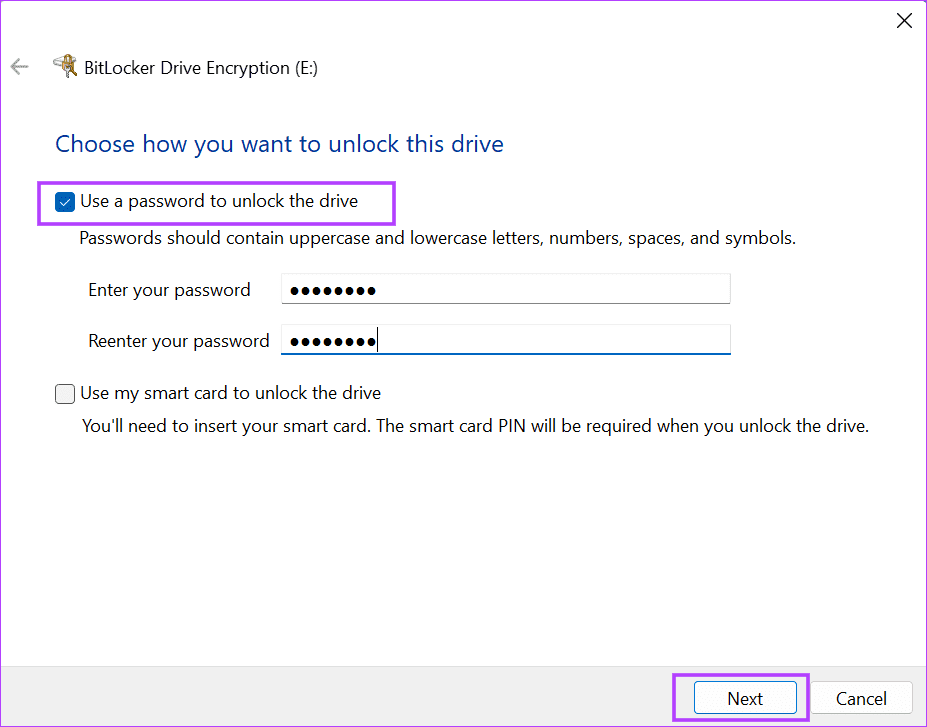
- Enter and confirm a strong password, then select Next.
- Choose an available option to back up your recovery key, such as Save to a file.
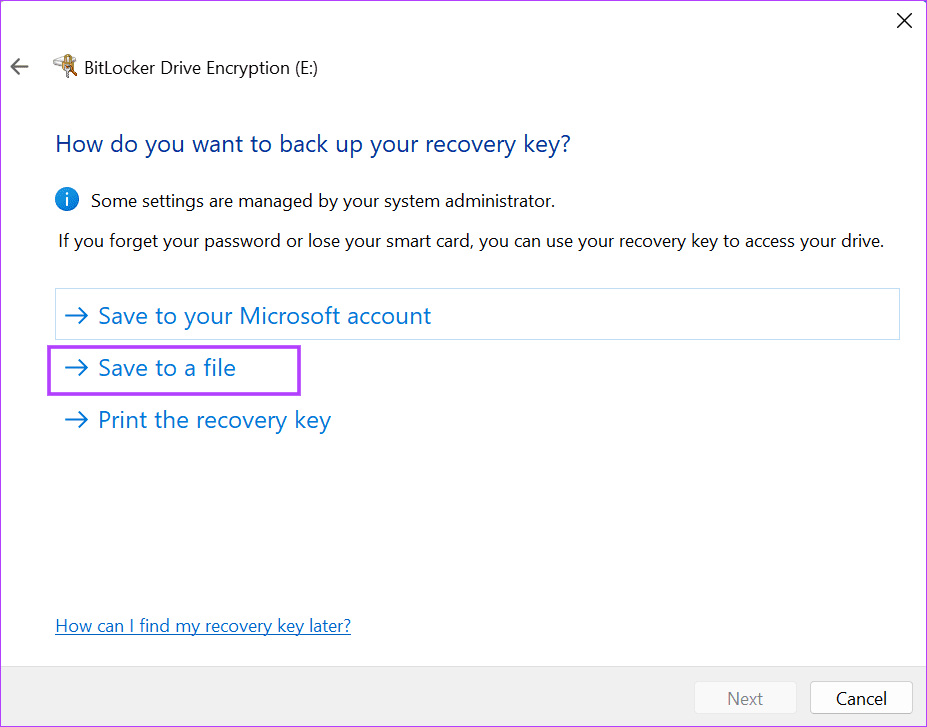
- Save the key to a secure location separate from the encrypted drive.
- Confirm that the key has been saved, then select Next.
Keep the recovery key private and accessible to you when needed. Do not save it only on the drive it protects.
- Select Encrypt entire drive, then select Next.
- Select Compatible mode if the drive needs to work with older versions of Windows. Otherwise, choose the option appropriate for your intended use.
- Select Start encrypting.
- Keep the drive connected until encryption finishes.
- Select Close when the process is complete.
The time required depends on the drive's capacity and contents. Windows should indicate when encryption is complete.
- Connect the encrypted drive to a Windows computer.
- Open File Explorer and double-click the drive.

- Enter the BitLocker password and press Enter.

The drive will be accessible after it is unlocked. Lock it again by safely ejecting the drive when you finish using it.
If Turn on BitLocker is unavailable, your Windows edition or device configuration may not support the feature. Contact your TSP for assistance.