Body
Overview
This article explains how to check for and install Lenovo system updates using the built-in Lenovo System Update application.
These updates are different from the regular Windows updates automatically installed by the University. Lenovo System Updates are designed specifically for the physical hardware in your computer and can help improve performance, stability, and compatibility.
Running Lenovo System Updates is especially helpful when troubleshooting issues involving:
- Keyboards or touchpads
- Cameras or microphones
- Docking stations
- External monitors
- USB or charging ports
- Audio devices
- Wireless or Bluetooth connections
- General hardware performance or stability
Sections
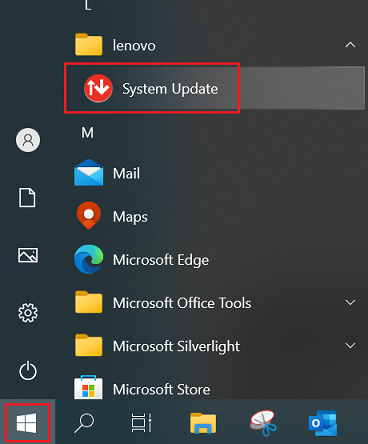
- Open the Windows Start Menu.
- Search for and open System Update.
- The Lenovo System Update icon is red with white arrows.
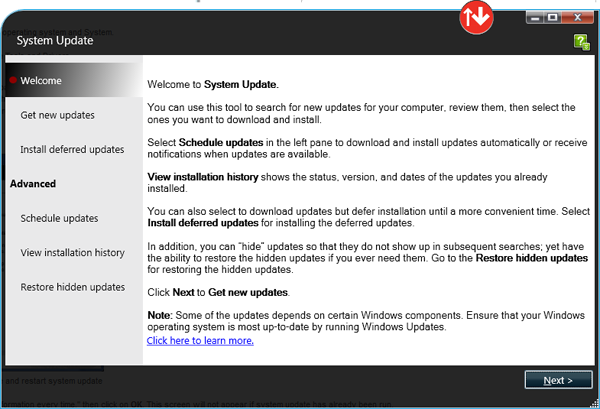
- On the Lenovo System Update welcome screen, select Next.
- If prompted to update the Lenovo System Update application itself, select Yes and allow it to restart.
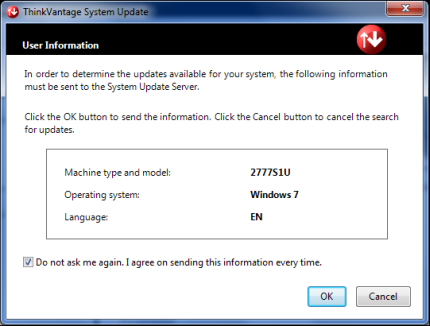
- If prompted to allow information about your computer to be sent to Lenovo:
- Select OK
- You may also choose:
- Do not ask me again. I agree on sending this information every time.
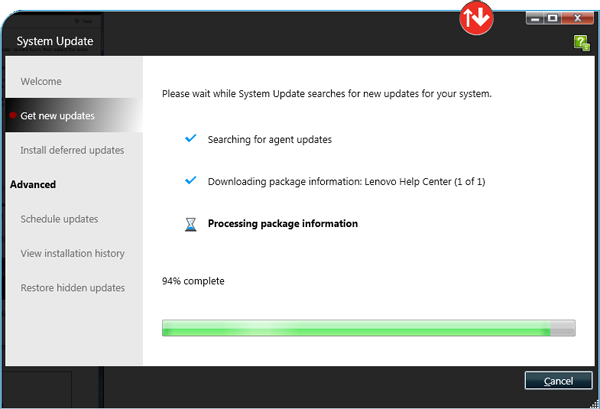
- Wait while the application searches for available updates.
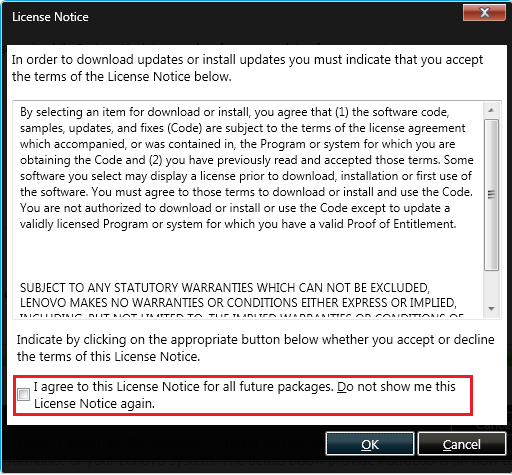
- If prompted with a license notice:
- Select:
- I agree to this License Notice for all future packages. Do not show me this License Notice again.
- Select OK
Review the available updates.
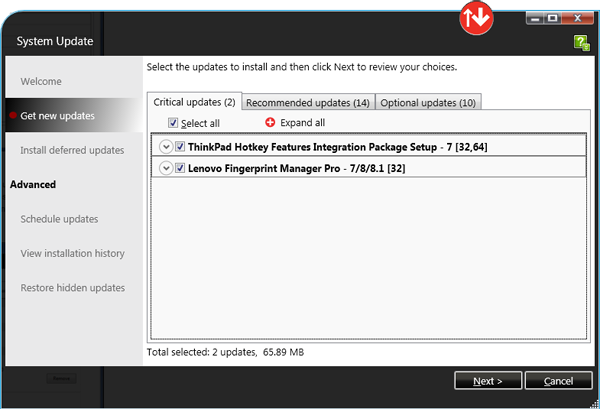
- Select all available updates except:
- Elliptic Virtual Lock Sensor
- Do not install this update. Click the down caret next to it and then select Do not show this update.
- Select Next to begin downloading and installing updates.
- Allow the updates to complete.
- This process may take between 10–60 minutes depending on the number of updates available.
- Restart the computer if prompted.
- Do not shut down or restart the computer while updates are installing.
- Keep the computer connected to power during the update process whenever possible.
- Some updates may temporarily cause the screen to go black or restart multiple times. This is normal behavior.
- Lenovo updates may include important BIOS, firmware, driver, and hardware-related improvements.